Showing posts with label exchange. Show all posts

Wednesday, August 29, 2012

Error uninstalling Exchange Server 2003: One or more users currently use a mailbox store on this server.

So, you're transitioning your Exchange 2003 environment to an Office 365 environment and desparately want to drop kick your Exchange 2003 server out the door.  After migrating everyone's email, you open ESM, delete all of the mailboxes and start to uninstall Exchange.  But then, this frustrating message shows up:

The component "Microsoft Exchange Messaging and Collaboration Services" cannot be assigned the action "Remove" because:
- One or more users currently use a mailbox store on this server.  These users must be moved to a mailbox store on a different server or be mail disabled before uninstalling this server.

Thanks for leaving me the fun part of trying to guess who you think still has a mailbox.

Fortunately, there's an easy way to do this.

Let's say your server name is EXCH01.

  1. Launch Active Directory Users and Computers.
  2. In the navigation pane, right-click on your domain and select Find from the context menu.
  3. In the Find Users, Contacts, and Groups window, click the Advanced tab.
  4. Click the Field button, point to User, and then select Exchange Home Server.
  5. Set the Condition field to Ends With.
  6. Enter the Exchange mailbox server you're decommissioning in the Value field (in our example, EXCH01).
  7. Click Add.
  8. Click Find Now.
  9. Once the list of users is displayed, you can right-click on the user, select Exchange Tasks, and then select Remove Exchange Attributes from the list of options.  Acknowledge the warning, and repeat for each user.
  10. Restart Exchange setup.

Monday, July 23, 2012

Office365 Migrations and the legacyExchangeDN

I ran across this problem for a customer and thought I would share my experience/resolution.

Migration Scenario:
- Customer runs Exchange 2003 environment and RPC/HTTP is non-functional for the migration
- Using 3rd-party tools to migrate accounts
- When an internal user replies to messages from another internal user prior to migration, the sender receives an NDR with the X400 address of the legacy Exchange system

Tools required:
- ADFind (joeware.net)
- Microsoft Online Services PowerShell Module
- Text editor

1.     Run ADFIND on the customer's server.  This is the syntax I used:
adfind -csv -h -b "" -f "objectClass=user" -nodn mail legacyexchangedn > userlist.csv

2.     Clean up the email addresses in the userlist.csv file (to make sure they match the Office 365 addresses).
3.     Connect to the Office 365 tenant using PowerShell.
4.     Run the following script:

$csv = import-csv .\userlist.csv -header Username
foreach ($line in $csv)
    {   
    $user=Get-Mailbox -Identity $line.Username
    $user.EmailAddresses+="X500:"+$line.legacyExchangeDN
    Set-Mailbox -Identity $line.Username -EmailAddresses $user.EmailAddresses
    }


Let me know if this helped you out by leaving a comment.

Cheers.

Tuesday, September 7, 2010

General Authentication Failed when using IMAP over SSL on Exchange 2010

Ran into an interesting certificate issue with Exchange 2010 and wildcard certificates.

I had installed a wildcard certificate for our domain on an Exchange 2010 server (just like I had previously for Exchange 2007) and enabled the IMAP service (Microsoft Exchange IMAP4 is the Exchange 2010 name of the service). However, when running the Enable-ExchangeCertificate cmdlet, I received an error enabling the wildcard certificate for IMAP services.

I eventually stumbled across this KB Article, Certificates that contain wildcard characters may not work correctly on an Exchange 2007 Service Pack 1-based server. When I ran the Get-ImapSettings cmdlet, I received the following output:

UnencryptedorTLSBindings SSLBindings LoginType X509CertificateName
------------------------ ----------- --------- -------------------
{:::143, 0.0.0.0:143} {:::993, 0.0.0.0:993} SecureLogin myservername

According to the KB, this is due to a problem with the way the cmdlet generates the X.509 certificate name. It can't interpret the wildcard character correctly, so it says that the FQDN of your server is just the NetBIOS name of your server. Oops. Exchange 2007 SP1 Roll-Up 4 is supposed to fix this behavior, but I experienced it on an Exchange 2010 server that was updated to current before deploying the certificate.

After I updated the X.509 Certificate name (using the command Set-ImapSettings -X509CertificateName "myserver.mydomain.com"), I restarted the IMAP service.

To make sure everything was working, I configured an Outlook profile with the IMAP settings of my test mailbox. When I clicked the "Test Connection" button, I was greeted with yet another error:

Log on to incoming mail server (IMAP): General authentication failed. None of the authentication methods supported by your IMAP server (if any) are supported on this computer.


The answer, was, in fact, in the output of the Get-ImapSettings cmdlet that I previously ran. Apparently, it was looking for a secure login method. However, in most SSL-enabled configurations, data is submitted in clear text through the SSL tunnel. To test my theory, I ran the command Set-ImapSettings -LoginType PlainTextlogin and restarted the IMAP service again. In my Outlook client, I clicked the "Test Connection" button again and all was right with the world.

Thursday, September 24, 2009

Setting up a Receive Connect for Postini Re-Injection

For any of you that use Postini for email services, setting up reinjection for the receive connectors in Exchange 2007 is a lot more work than allowing connection and relay through a vSMTP server in Exchange 2003.

Exchange 2007 has a lot of great features, such as the uber-powerful Exchange Management Shell. IMHO, Exchange 2007 also has a lot of drawbacks, such as a half-assed GUI. You can only achieve the most basic things through the GUI; anything that requires thought or a little more configuration is done through the cumbersome Exchange Management Shell interface.

To achieve the previously simple task of allowing relay through a vSMTP server, you can go one of two routes. I'm going to document the route that grants least privilege. The MSExchangeTeam blog as well as Technet both have variations on this as well as the Pro's and Con's of using it.

Allow Anonymous Relay
1. Open the Exchange Management Console.
2. Expand Server Configuration > Hub Transport.
3. Select the server in the top pane, and then click New Receive Connector... in the right pane.
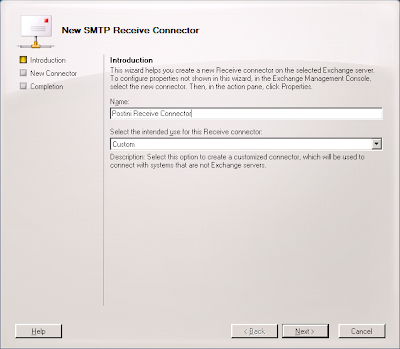
4. Enter a name for the connector, such as "Postini Receive Connector," select "Custom" as the intended use for the connector, and click Next.

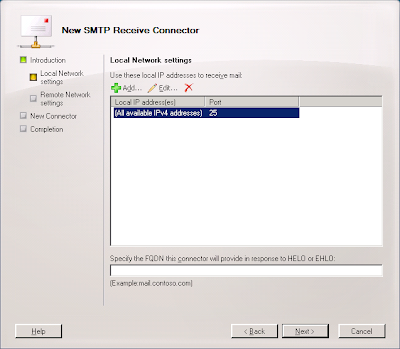
5. Select the "All availble IPv4 addresses" entry and click the Edit... button.

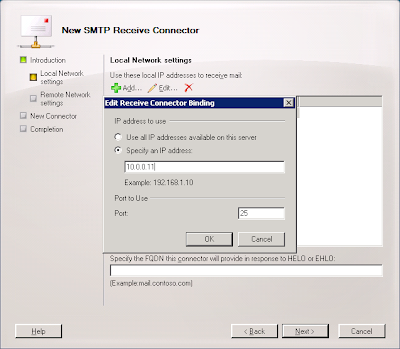
6. Select the "Specify an IP address:" radio button, enter the IP address of the interface that will be communicating with Postini, and click OK.

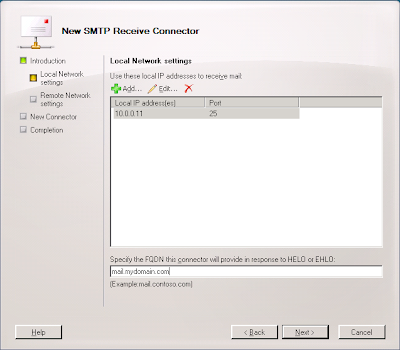
7. Enter the Fully-Qualified Domain Name the connector use to respond to connection attempts (most likely something like mail.mydomain.com) and click Next.

8. Click the 0.0.0.0-255.255.255.255 enter and click Edit....
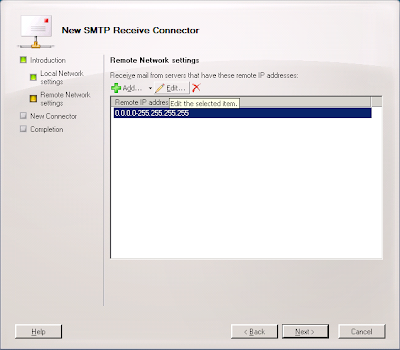

9. Enter the appropriate address range for the Postini system you use. Systems 5, 6, 7, 8, and 20 are 64.18.0.0/20 (64.18.0.0./255.255.240.0); System 9 is 74.125.148.0/22 (75.125.148.0/255.255.252.0); Systems 20, 200, and 201 are 207.126.144.0/20 (207.126.144.0/255.255.240.0) and click OK.
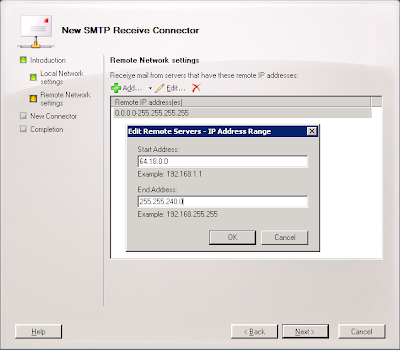

10. Click Next.
11. Click New.
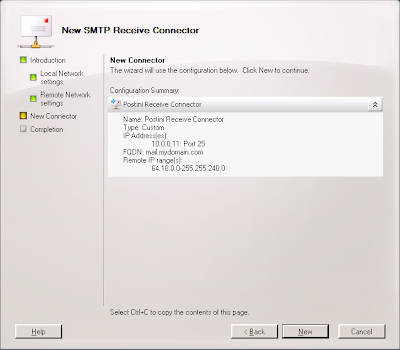

12. Right-click on the new connector, select Properties, select the Authenticaion tab and Ensure "Transport Layer Security" and "Basic Authentication" are selected.
14. Click the Permissions Groups tab and ensure Anonymous Users is selected.
15. Click OK.

So that gets you about half-way there. To finish it up, open the EMS and Copy/Paste the following cmdlet in:

Get-ReceiveConnector "Postini Receive Connector" | Add-ADPermission -User "NT AUTHORITY\ANONYMOUS LOGON" -ExtendedRights "Ms-Exch-SMTP-Accept-Any-Recipient"

Replace "Postini Receive Connector" with the name of the connector you created in Step 4 above.

If you want to use the EMS to create and set the permissions on the new connector, you can use these cmdlets:

New-ReceiveConnector -Name "Postini Receive Connector" -AuthMechanism "Tls,BasicAuth" -Usage Custom -PermissionGroups AnonymousUsers -Bindings 10.0.0.11:25 -RemoteIpRanges 64.18.0.0/20

Get-ReceiveConnector "Postini Receive Connector" | Add-ADPermission -User "NT AUTHORITY\ANONYMOUS LOGON" -ExtendedRights "Ms-Exch-SMTP-Accept-Any-Recipient"

Replace the values for -Name, -Bindings, and -RemoteIPRanges as necessary.

For more information on these types of connectors:
MSExchange Team Blog
Microsoft Technet

Friday, June 19, 2009

Exchange Delegates

I recently found myself in a spot where I needed to troubleshoot a delegate issue--a user was set as a delegate but no longer was with the company and didn't have a mailbox anymore, so periodic NDRs were being generated for mail destined for the delegate.

To discover all of the mailbox for which this person had been a delegate, I ran the command (on a domain controller or machine that had ldifde.exe):

ldifde -f delegates.txt -d "dc=domain,dc=com" -r "(publicDelegatesBL=CN=First Last,OU=AppropriateOU,dc=domain,dc=com)" -l name,publicDelegatesBL

Active Directory holds delegate information in two attributes--publicDelegates (listing which users are delegates of "n" mailbox) and publicDelegatesBL (listing which users "n" mailbox is a delegate of).

To find out all of the the mailbox of Aaron Guilmette in OU=Home,DC=aaronguilmette,DC=com:

ldifde -f delegates.txt -d "dc=domain,dc=com" -r "(publicDelegates=CN=Aaron Guilmette,OU=Home,DC=aaronguilmette,DC=com)" -l name,publicDelegates

To find out all of the mailboxes for which Aaron Guilmette in OU=Home,DC=aaronguilmette,DC=com is a delegate:

ldifde -f delegates.txt -d "dc=domain,dc=com" -r "(publicDelegatesBL=CN=Aaron Guilmette,OU=Home,DC=aaronguilmette,DC=com)" -l name,publicDelegatesBL

To find out all of the delegate relationships for a domain:

ldifde -f delegates.txt -d "dc=domain,dc=com" -r "((publicDelegates=*)(publicDelegatesBL=*))" -l name,publicDelegates,publicDelegatesBL

Hope this is helpful to some of you.

Friday, May 8, 2009

Active Sync Error 85010014 OTA with Exchange 2003

Recently, we renumbered a client's network to reduce broadcast traffic and introduced two new redundant internet connections. Everything seemed fine in the initial testing, and we all went home.

The next day, when we were sifting through the fallout tickets, there was a recurring theme--Windows Mobile devices were no longer synchronizing. During an ActiveSync over the air, they would receive error 85010014. It's a dreaded error and is usually seen when using ActiveSync 4.1 on a desktop.

I had just set this Exchange server up a few weeks ago, and ActiveSync was previously working. It appeared to stop working after the IP address for the Exchange server changed.

The server was the only Exchange server in the environment and had an SSL cert bound to the default website for mail.[domain].com. OWA and RPC/HTTPS connections were working fine.

However, when browsing to mail.[domain].com/OMA, I received a server processing error. Once I got that response, I immediate knew where to look. I navigated to IIS Manager > Web Sites > Default Web Site > exchange-oma. What is exchange-oma you ask? If follow Microsoft KB 817379 for doing single-server deployments where you have Forms-based authentication and SSL enabled on your only Exchange server, you know what I'm talking about.

In Exchange scenarios where you have both front-end and back-end servers, this isn't typically an issue. There are a number of HTTP calls that are made to the /exchange directory on the back end server, which execute normally. However, when you only have a single server deployment and apply Forms-based authentication, the /exchange directory is protected via SSL. The work-around that KB 817379 walks you through is to create a secondary virtual directory that ActiveSync devices will use for communication that does not have Forms-based authentication.

My problem was in steps 13-14 for re-creating the virtual directory under Method 2 of KB 817379. You are supposed to add an IP Address restriction for the newly created virtual directory for ActiveSync/OMA users so that all except the IP address of the server you're configuring can connect.

Once I had updated that IP address entry to reflect my server's new address. the errors went away.

Sunday, February 8, 2009

Optimizing Exchange Disk Performance with Diskpart

Since a lot of folks (myself included) are still running a lot of Exchange 2003 in the enterprise, I though I would post a bit about setting the track alignment properly in various kinds of storage.

According to Microsoft, when creating disk partitions, the "Disk Management" MMC snap-in mis-aligns the partition with the underlying physical disk. On disks where there are 64 sectors per track, for example, the Disk Management MMC starts the partrition at the 64th sector instead of the 65th sector. It may not sound like a big deal, but in Exchange-land (and really any high-performance database), I/O that overlaps two tracks can degrade your performance by as much as 20%.

On Windows 2003, you use Diskpart.exe to set the starting offset for partitions. You can look in the Disk Management MMC snap-in to determine which disks you want to manipulate. Note the disk numbers on the left-hand side. You will reference these numbers inside Diskpart.

In this example, the disk that I want to manipulate is Disk 24.


Click Start > Run and type diskpart.


Diskpart is a command-line utility. Never fear, the syntax is pretty simple. You can type help for a list of commands. Commands have context sensitive help, so typing create partition ? will return a list of modifiers you can use.

In this example, I'm using a Pillar Axiom 600, and the vendor has recommended using an offset of 128. Armed with that knowledge, I will select disk 24 and perform the partition creation command.


From there, you can go back into the Disk Management MMC, assign a drive letter or mount point and format the volume. It's now ready for databases.

I'll update this post periodically with recommended offsets for various types of storage. As an info-byte, Diskpar (Windows 2003) creates partition offsets in KB while Diskpar (Windows 2000) creates them in sectors or blocks.


Storage SystemRecommended Diskpart Alignment
EMC Symmetrix DMX64
HP StorageWorks EVA64
Pillar Axiom128

Use these settings to optimize your Exchange storage. For more interesting and informative articles on disk alignment, check out these links:

Optimizing Storage for Exchange Server 2003 - (Microsoft Technet)

Why should you use Diskpar (Diskpart in W2003 SP1)? - (MSExchange Team Blog)

Disk Sector Alignment - (Christian Bolton's SQL Server Blog)

Disk Partition Alignment (Sector Alignment) for SQL Server: Part 1: Slide Deck - (Jimmy May, Aspiring Geek)

Monday, February 2, 2009

Outlook and 0x80004005

This afternoon, while troubleshooting a user's NDR problem, I ran into a problem of my own:

Your message did not reach some or all of the intended recipients.

Subject: RE: Service Desk Ticket 00173590
Sent: 2/2/2009 4:28 PM

The following recipient(s) cannot be reached:

Lastname, Firstname on 2/2/2009 4:28 PM
This message could not be sent. Try sending the message again later, or contact your network administrator. Error is [0x80004005-00000000-00000000].

Like many admins when troubleshooting end-user problems (missing/deleted messages, screwy appointments, etc.), I grant a dedicated account service-level permissions on the problem mailbox and begin testing by creating a new profile and logging into the problem mailbox. Tonight, after the troubleshooting session was resolved, I went to log in to my own mailbox profile and all seemed well. A few minutes later, I sent a message, and immediately got the above NDR. Having done this hundreds of times, I was pretty perplexed.

Starting to troubleshoot my own mailbox like I have hundreds of others, I went to verify that there was nothing wrong with my account by hitting my back-end mailbox server.

Logged off, logged back in, and retried sending a message. Same NDR.

I've usually experienced 80004005 (in relationship to Outlook) being a security or permissions problem of sorts. I was able to track the issue down to the way I had configured the temporary I was using for troubleshooting. After entering the server name and mailbox name, you are presented with a dialog box for credentials. I entered the credentials for which I had granted service account permissions, and had inadvertantly selected the "Save Password" button.

In whatever crazy universe I'm operating in, that seemed to be somehow affecting my logons with other profiles. To rectify the situation, I went to Control Panel > Mail > E-Mail Accounts > Change E-Mail Account > More Settings > Security and selected the "Always Prompt for Logon Credentials" checkbox. OK all the way out, launch Outlook, put in my new credentials, and then try to send/receive.

Problem solved.

Friday, November 7, 2008

Error c00706ba when adding an Exchange RUS for a child domain

This is one of those problems that can leave you banging your head against the wall. Say you have a multiple domain forest and have Exchange 2003 installed in the parent domain. Then, say you want to give Exchange mailboxes to users in one of the child domains. Shoudl be as easy as running setup /domainprep in the child domain and then creating the new RUS through ESM?

If only.

There's an error that plagues every Exchange admin who tries this task. You go through the steps creating the RUS, choosing the Exchange Server you want to host the RUS and the domain controller in the child domain. You have everything selected, click Finish, and then, after what seems like an unusually long pause (the kind that lets you know it's not going to work), you get this message:

The RPC server is unavailable.
Facility: Win32
ID no: c00706ba

RPC errors. Great. You check firewalls on both sides--wide open. You ping the target DC's FQDN, which resolves. Retry the procedure, but it's really about as effective as slamming your hand in a car door repeatedly.

The solution is ridiculously simple, and makes sense in Exchange 2003 world. Exchange 2003 still has a lot of dependencies on NetBIOS name resolution. There are several alternatives:

1. Add a static WINS entry for the domain controller in the child domain.
2. Configure WINS replication between child and parent domains.
3. Add the hostname (not FQDN) to the hosts file in %windir%\system32\drivers\etc\hosts on the Exchange Server where you are trying to add the RUS.
4. On the network adapter properties of your Exchange server, add DNS and WINS servers for the child domain.

The problem is that the RUS wizard is looking for the NetBIOS name of the DC that's going to be used in the child domain. Unless you're replicating WINS between parent and child or pointing to a remote WINS/DNS server that has the target domain controller that you've specified for the RUS, you won't be able to resolve the short name of a domain controller in the child domain. Yes, it sucks. Even though the Exchange server is looking for a NetBIOS name, putting the short name of the DC the hosts file works due to the name resolution lookup process. If you had put the FQDN of the target DC in the hosts file, you'd still have the problem--remember, you can already ping the FQDN, so putting it in a local hosts file isn't going to fix your problem.

The real tricky part of figuring this out is that during the RUS creation process, the wizard tells you the FQDN of the target domain controller in the child domain, yet it attempts to contact only the NetBIOS name of the DC.

You may also want to check to make sure that the Exchange Domain Servers and Exchange Enterprise servers groups have been created (should have been done through the Exchange setup /domainprep command) and are in the default Users container.